











How to play on Sudoku.st
Play a puzzle, keep track of candidates and follow the solver's explanations one step at a time.
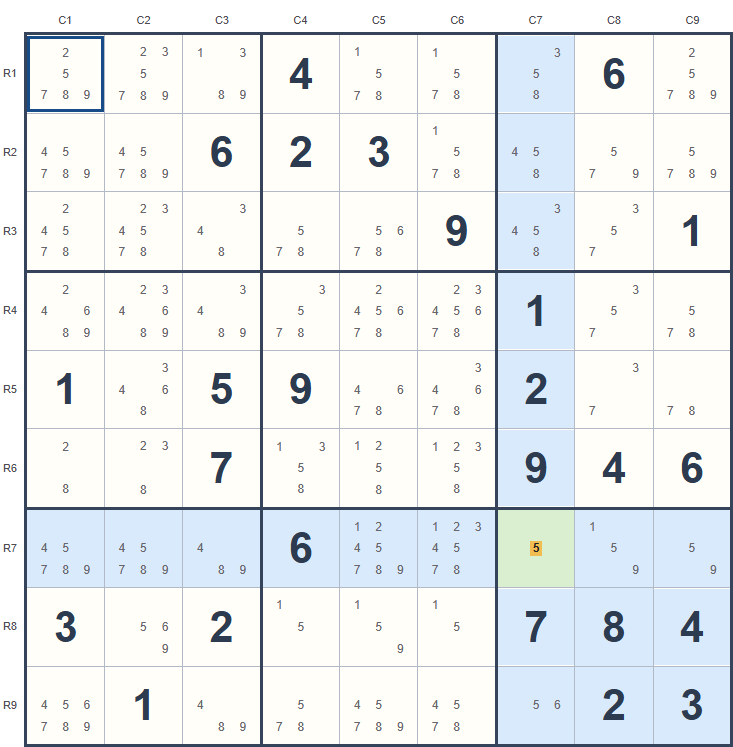
The only remaining candidate in R7C7 is 5. Place 5 there.
1. Choose your puzzle
Open "Play Sudoku", choose a difficulty and select "New puzzle". The difficulty reflects both the techniques needed and the amount of work involved. The puzzle number and permanent link reopen the starting puzzle; they do not save your progress.
2. Select a cell and enter a digit
Click or tap an empty cell, then use the number pad or type 1-9. Use the arrow keys to move between cells. To clear an editable cell, select "Erase" or press Backspace or Delete. The original givens stay locked while you solve.
Select the "Undo" icon beside "Show candidates" to reverse your last change. Use the "Fullscreen" icon beside it to focus on the board and puzzle controls.
3. Work with candidates
Turn on "Show candidates" to see which digits are still possible, based on the filled cells and any candidates you have removed. The small digits are notes about possibilities, not confirmed answers.
Press C followed by a digit from 1 to 9 to remove or restore a candidate instead of placing a digit. Only remove a candidate when you can explain why it is impossible. An incorrect removal can prevent the solver from continuing; use "Undo" to restore it.
You can also enter a candidate that conflicts with a digit in the same row, column or box. These notes stay visible in red until you remove them or resolve the conflict.
4. Choose how much help you want
- Hint
- Highlights an area to inspect and gives a short prompt, leaving the deduction for you to find.
- Solve one cell
- Explains the next logical step and highlights the cells involved. A step may remove candidates instead of placing a digit. Select "Solve one cell" again to apply the displayed hint and see the next step.
- Apply hint
- Makes the placement or removes the candidates shown in the hint. Read the explanation first, then apply it when you are ready.
Each full hint links to its technique page in this guide. The link opens in a new tab so you can read the explanation without leaving your puzzle.
Try it on a real puzzle
Start with the highlighted step, then keep solving. Use "Apply hint" to make the suggested change, or enter your own digits and candidate notes. Use "Undo" to reverse your last change.
| C1 | C2 | C3 | C4 | C5 | C6 | C7 | C8 | C9 | |
|---|---|---|---|---|---|---|---|---|---|
| R1 | |||||||||
| R2 | |||||||||
| R3 | |||||||||
| R4 | |||||||||
| R5 | |||||||||
| R6 | |||||||||
| R7 | |||||||||
| R8 | |||||||||
| R9 |
Use the arrow keys to move, 1-9 to enter a digit and Backspace or Delete to clear a cell. To add or remove a candidate, press C and then 1-9.
Source puzzle number: 332429 · Play this puzzle from the start
Understand the highlights
- Amber: pattern cells. The cells that form the pattern.
- Blue: related cells. The rows, columns or boxes relevant to the step.
- Green: placement or elimination. The cells where a digit can be placed or a candidate removed. Crossed-out candidates show the proposed removals.
Strong-link hints label their cells A, B, C and D. Wing hints use P for the pivot and A and B for the pincers. Read the explanation to see how the cells are connected.
Prefer to solve on paper?
On desktop, select "Print this puzzle" below the board to open your browser's print preview with the original givens. Turn on "Show candidates" to include candidates in the printout. You can print the puzzle or save it as a PDF.